Can an iPhone even play DSD?
Out of the box, no. Apple Music, the Music app, and the Files app won't play a
.dsf or .dff file — and even if they appeared to, they'd route audio
through the system mixer, which can't carry DSD intact. But the iPhone and iPad are excellent DSD
transports. With the right app and a USB DAC, they'll send a bit-exact DSD stream to your
converter and let it do the analog work. You need three things:
- A bit-exact player that bypasses the system mixer — this is what bit-exact playback is about, and what 1-bit does.
- A USB DAC that accepts DSD (almost all do, via DoP).
- The right cable or adapter, and your DSD files on the device or reachable over your network.
How DSD actually reaches the DAC on iOS: DoP
This trips people up, so it's worth being precise. iOS and iPadOS use a class-compliant USB audio driver, and that driver has no path for raw, native DSD — Apple doesn't allow the vendor drivers that native DSD would require. So on Apple devices, DSD travels by DoP (DSD over PCM) instead.
Crucially, DoP is not transcoding and it is not lossy. It doesn't convert DSD to PCM. It simply wraps the unaltered DSD bits inside packets shaped like 24-bit PCM, with a small marker so the DAC knows to unwrap them. The exact same DSD bits that were in your file arrive at the DAC — they just travelled in a PCM-shaped envelope. The catch is that the envelope is fragile: anything that alters the stream breaks it (and produces loud noise), which is the whole reason a bit-exact path is mandatory here.
Set it up with 1-bit
-
Install a bit-exact player
Get 1-bit from the App Store. It plays DSF, DFF, FLAC, ALAC, WAV, AIFF, and more, and sends each one to your DAC untouched.
-
Connect your USB DAC
On a USB-C iPhone or iPad, a plain USB-C cable to the DAC is all you need. On a Lightning iPhone, use Apple's Lightning to USB Camera Adapter — ideally the version with a power passthrough port, since some DACs draw more than a Lightning port likes to give.
Bus-powered dongle DACs (the small "DAC cables") work too and are the easiest way to start.
-
Get your DSD files onto the iPhone — or skip the copying
Two ways:
- Local: copy
.dsf/.dfffiles into 1-bit via the Files app or Finder/iTunes file sharing. Good for a curated set on the go. - Stream from your computer: run the free 1-bit bridge on your Mac, PC, or Raspberry Pi and your whole library is available over your network — bit-exact, no copying, reachable from outside the house too. See the setup walkthrough.
- Local: copy
-
Play, and confirm it's bit-exact
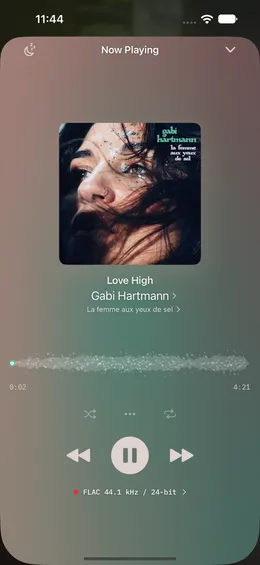
Pick a DSD track. The mini-player shows a green BIT-EXACT badge when the path is clean. If it ever shows orange, something in the route (often an AirPlay or Bluetooth device) is forcing a sample-rate change — switch to the wired USB DAC.
-
Set volume on the DAC, not the phone
Leave digital volume at maximum and use the DAC's or amp's analog control. For DSD this isn't just best practice — turning the phone's volume down can corrupt the DoP stream and produce white noise.
Why Bluetooth and AirPlay can't do it
There's no such thing as DSD over AirPlay or Bluetooth. Both re-encode audio to their own transports (AAC, SBC, AptX, LDAC, etc.) and resample it — by definition not bit-exact, and incapable of carrying DoP. DSD on iPhone means a wired USB DAC. Wireless is fine for convenience; it's just a different, lossy path.
If you hear loud hiss instead of music
That's the classic DoP-corruption symptom: something attenuated or resampled the stream and the DAC lost its DSD lock. Make sure digital volume is at 100%, no EQ or system audio enhancements are active, and you're going out over USB rather than a wireless route. The mechanism is explained in what "bit-exact" means; bridge-specific gotchas live on the bridge troubleshooting page.
Want to understand the formats themselves? Start with DSD vs PCM. Wondering whether to bother when you already pay for streaming? See DSD vs streaming.